Buy & Sell Buttons
Overview
FastBTN provides 5 buttons to Buy and 5 buttons to Sell, but you don’t have to use them all. To disable a button, simply set the button’s lot size to 0 (zero). You can customize each button individually.
Behavior
When you click a Buy or Sell button:
- A market order is sent immediately
- The order uses the current chart symbol
- Trade parameters such as lot size, TP, and SL are applied based on your settings
Because these buttons execute trades instantly, it is important to configure them carefully.
FastBTN will send the Buy / Sell order immediately without any confirmation, as it is intended to open trade quickly. Please use with caution.
You can control whether Buy and Sell buttons are shown on the chart. Typical options include:
- Showing both Buy and Sell buttons
- Showing only Buy buttons
- Showing only Sell buttons
- Hiding both buttons completely
These options are useful if:
- You only trade in one direction
- You want to prevent accidental trades
- You are testing other features without opening new positions
Buy & Sell Buttons Settings
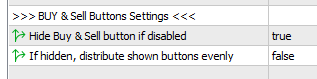
Hide Buy & Sell Buttons if Disabled
When you don’t use all 5 buttons, you may want to disable some of them. The disabled buttons can still be shown on your chart or be hidden. Set this option to true to hide disabled Buy & Sell buttons.
If Hidden, Distribute Shown Buttons Evenly
When you disable and hide some buttons, do you want the shown buttons to fill the row? If yes, set this to true. This setting only works when Hide Buy & Sell buttons if disabled is set to true.
Some Examples
Here are some examples to make this clearer. Pleae remember that to disable a button, you just need to enter 0 (zero) as its lot size.
| Example 1 | |
|---|---|
| Disabled Buy Buttons | 4, 5 |
| Disabled Sell Buttons | None |
| Hide Buy & Sell buttons if disabled | true |
| If hidden, distribute shown buttons evenly | true |
Result:

|
|
| Example 2 | |
|---|---|
| Disabled Buy Buttons | 4, 5 |
| Disabled Sell Buttons | None |
| Hide Buy & Sell buttons if disabled | true |
| If hidden, distribute shown buttons evenly | false |
Result:

|
|
| Example 3 | |
|---|---|
| Disabled Buy Buttons | 4, 5 |
| Disabled Sell Buttons | None |
| Hide Buy & Sell buttons if disabled | false |
| If hidden, distribute shown buttons evenly | false / true (no effect) |
Result:

|
|
| Example 4 | |
|---|---|
| Disabled Buy Buttons | 1, 3, 5 |
| Disabled Sell Buttons | 2, 4 |
| Hide Buy & Sell buttons if disabled | true |
| If hidden, distribute shown buttons evenly | false |
Result:

|
|
| Example 5 | |
|---|---|
| Disabled Buy Buttons | 1, 3, 5 |
| Disabled Sell Buttons | 2, 4 |
| Hide Buy & Sell buttons if disabled | true |
| If hidden, distribute shown buttons evenly | true |
Result:

|
|
Text
The Text will be displayed followed by the button’s lot size.
Default values:
• Buy for Buy buttons
• Sell for Sell buttons
So if you set:
- 0.1, 0.2, 0.5, 1, 2 for the buttons’ lot size for Buy & Sell buttons 1 to 5 respectively
- Set the buttons’ Text to “Buy” for Buy Buttons and “Sell” for Sell Buttons
Here’s what you get:

You can set the Text to blank:

Or you can get creative:

You can always adjust the buttons’ width from the General Settings.
Lot Size
Enter the lot size for each button to be executed when the button is pressed. Enter 0 (zero) to disable the button.
Button Color
You can set each button’s background color. It is recommended that you use different colors for Buy Buttons and Sell Buttons, but use the same color for all Buy Buttons 1 to 5, and another same color for all Sell Buttons 1 to 5.
Text Color, Font Family, and Font Size
Please refer to Button Appearance.
Shortcut Key
Only Buy Buttons 1, 2, 3 and Sell Buttons 1, 2, 3 have the option for a shortcut key due to the limitation of only 26 available shortcut keys. Please read more about shortcut keys.
Disabling a button will also disable its shortcut key. Leave blank if you don’t want to use it.
Take Profit and Stop Loss Integration
Buy and Sell buttons can work together with:
- Auto Take Profit
- Auto Stop Loss
- Manual TP / SL settings
If Auto TP or Auto SL is enabled, they are applied automatically when the trade is opened. Please refer to Auto TP & SL.