General
Magic Number
The magic number is used to identify that a trade was opened by an EA. This allows FastBTN to distinguish its own trades from manual trades or other EAs.
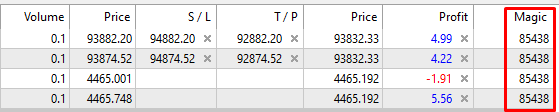
FastBTN uses 85438 as its magic number. You can change it to any number you want. When you see this magic number on a trade, you’ll know that trade was opened by FastBTN.
General Button Settings
Buttons’ Position
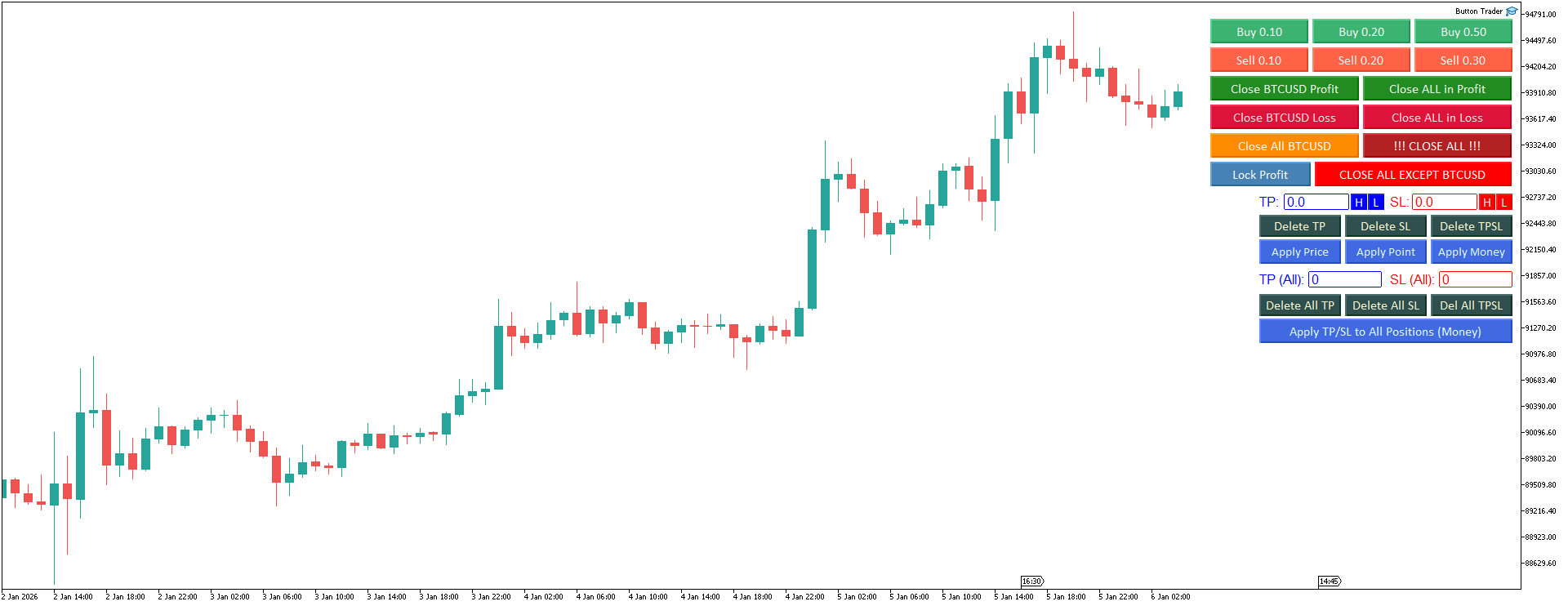
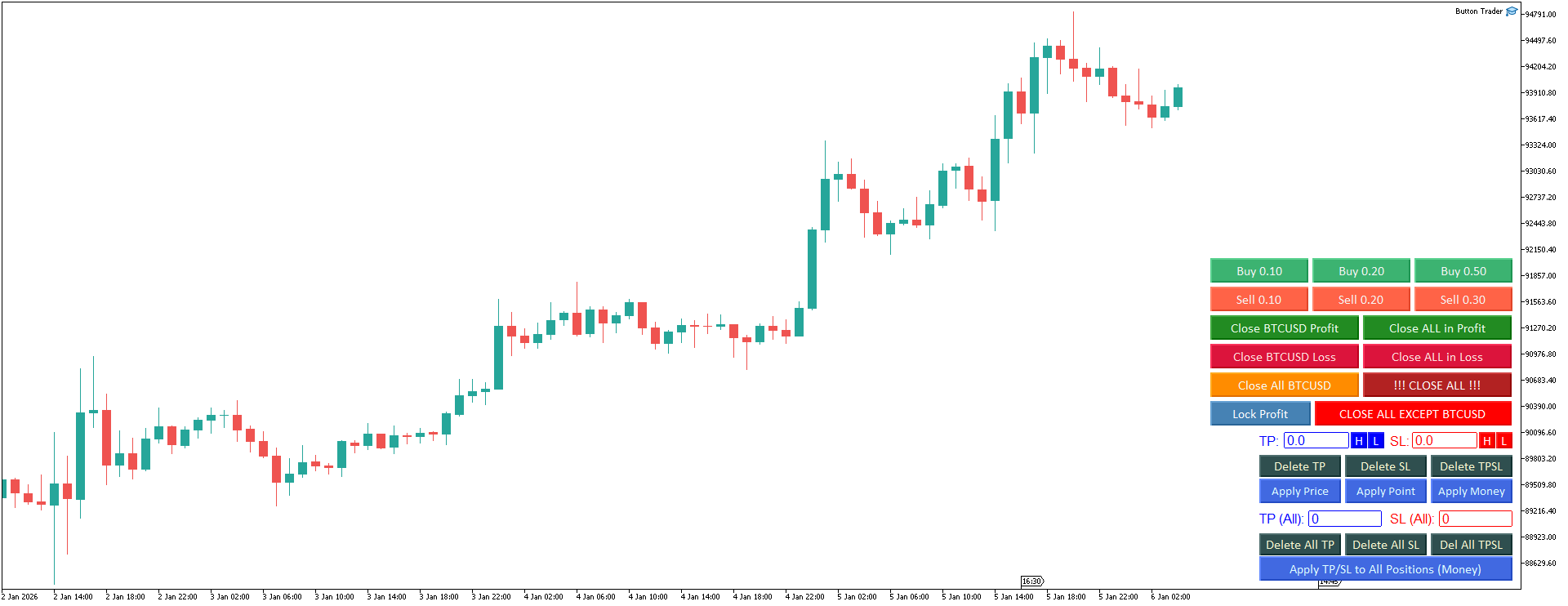
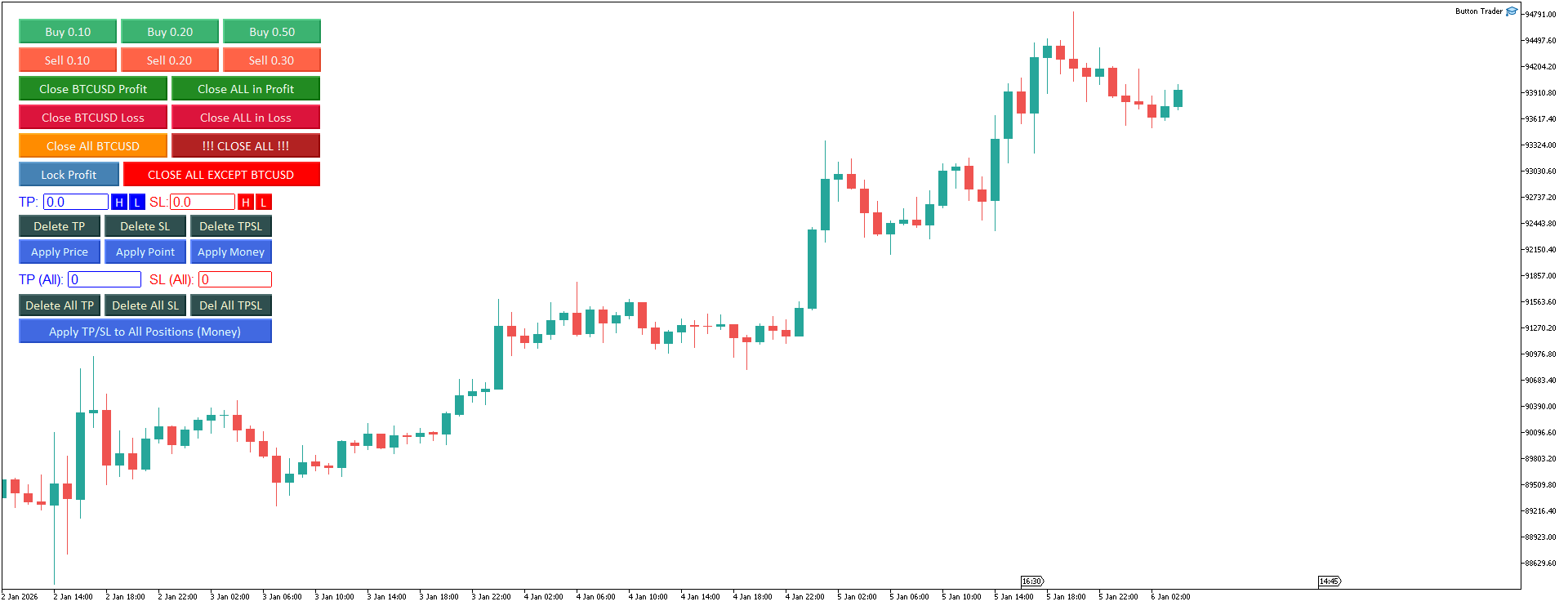
You can choose where you want to place FastBTN’s buttons:
Right upper chart corner:
Right lower chart corner:
Left upper chart corner:
Left lower chart corner:
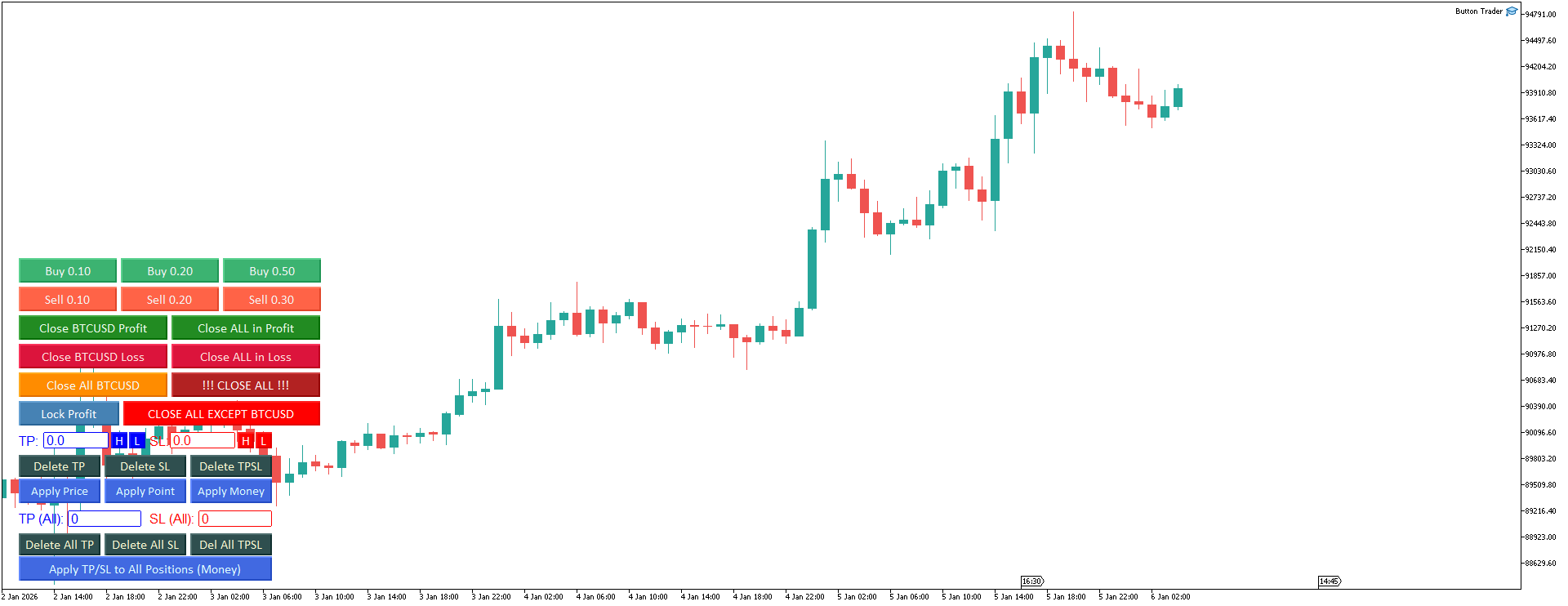
Button Width, Height, and Spacing
Default values:
- Button width: 70
- Button height: 30
- Button spacing: 5
This is the space between buttons, to the left/right/above/below.
You can adjust these values to suit your needs. For example, if you change a button’s text, you may want to make it wider or narrower.
One Column Close Buttons
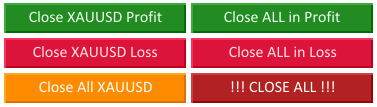
The default value is false, meaning the Close Buttons are arranged in 2 columns like this:
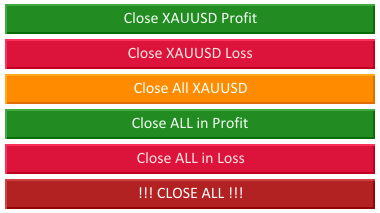
If you set it to true, they will appear like this:
Show Buttons Tooltip
If you enable this option, a tooltip will appear when you hover over a button. The tooltip briefly describes what that button does and its shortcut (if any).
Enable Shortcut Keys
Set this to true if you want to use keyboard shortcuts for faster execution. Please read more about shortcut keys here.
Enable Comments
FastBTN uses comments to let you know which buttons or shortcut keys are pressed when you execute a trade. Set this to true to enable it. If you set it to false, the comments will default to blank. Please read more about shortcut keys here.
Uniformity for All Buttons
If enabled, this will override the individual button settings.
Use same text color for all buttons
If set to true, all buttons will have the same text color: the color you choose in the Text color for all buttons option.
Each button’s individual text color setting will be overridden.
Use same font for all buttons
If set to true, all buttons will have the same font family: the font family you enter in the Font family for all buttons option. Make sure the font family is already installed on your computer.
Each button’s individual font family setting will be overridden.
Use same font size for all buttons
If set to true, all buttons will have the same font size—the font size you enter in the Font size for all buttons option.
Each button’s individual font size setting will be overridden.