Shortcut Keys
FastBTN supports keyboard shortcuts to help you execute actions faster without relying only on mouse clicks. Using shortcuts can significantly improve your workflow, especially during active trading.
However, you should only use shortcut keys when you’re confident with them.
The risk of using shortcut keys is the same as clicking the wrong button: you press the wrong key. Furthermore, you don’t see anything visually when using shortcut keys. You have to memorize the keys. When you’re just starting out, pause and think for a moment before you press a key, then press it only after you’re confident it’s the correct key.
After some time, you will develop muscle memory and you’ll be less likely to make mistakes.
Enabling or Disabling Shortcuts
Keyboard shortcuts can be enabled or disabled through FastBTN input settings.
To adjust shortcut behavior:
- Press F7 to open FastBTN properties.
- Go to the Inputs tab.
- Locate
Enable Shortcut Keysat the top, underGeneral Button Settings. Set it totrueto enable it,falseto disable it. Default isfalse.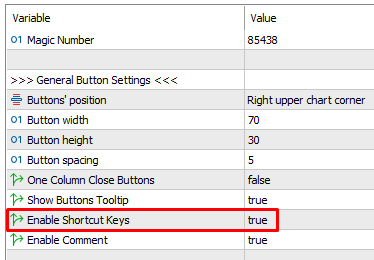
- Click OK to apply the changes.
If shortcuts are disabled, all actions must be performed using on-chart buttons.
Configure Shortcuts
There are 26 shortcut keys available, from A to Z. Since there are more than 26 buttons, not all buttons can have a shortcut key.
The shortcut configuration is located at the bottom of the properties window.
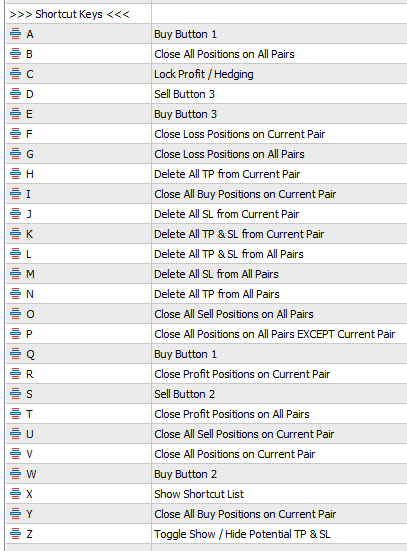
Choose an action for each key:
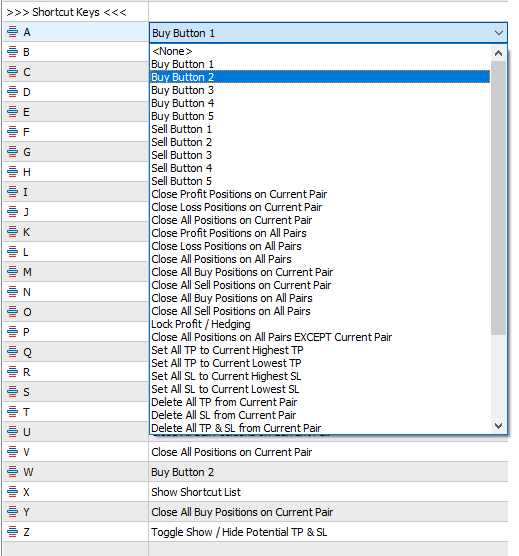
If you don’t want to assign any shortcut to a key, choose <None> at the top of the list.
You can select the same action to some keys. For example you set Q and W to Buy Button 1. This means a button can have more than 1 shortcuts.
Default Shortcuts
Here’s the list of default shortcut keys:
| Key | Function |
|---|---|
| A | Sell Button 1 |
| B | Close all positions on all pairs |
| C | Lock profit / hedging |
| D | Sell Button 3 |
| E | Buy Button 3 |
| F | Close loss positions on current pair |
| G | Close loss positions on all pairs |
| H | Delete all TP from all open positions on current pair |
| I | Close all buy positions on current pair |
| J | Delete all SL from all open positions on current pair |
| K | Delete all TP & SL from all open positions on current pair |
| L | Delete all TP & SL from all open positions on all pairs |
| M | Delete all SL from all open positions on all pairs |
| N | Delete all TP from all open positions on all pairs |
| O | Close all sell positions on all pairs |
| P | Close all positions on all pairs except current pair |
| Q | Buy Button 1 |
| R | Close profit positions on current pair |
| S | Sell Button 2 |
| T | Close profit positions on all pairs |
| U | Close all sell positions on current pair |
| V | Close all positions on current pair |
| W | Buy Button 2 |
| X | Help Key |
| Y | Close all buy positions on current pair |
| Z | Toggle show / hide potential P/L from TP/SL |
When to Use Shortcuts
Keyboard shortcuts are especially useful when:
- You need to act quickly during fast market movements
- You want to reduce mouse usage
- You already know your preferred actions by muscle memory
However, if you are new to FastBTN, it is recommended to first become comfortable using the on-chart buttons before relying on shortcuts.
Important Notes
- Shortcuts only work when the chart window is active
- Shortcut keys may conflict with MT5 or system shortcuts
- Always try this feature on a demo account first to verify their actions before using it on a live account
If a shortcut does not work as expected, check the FastBTN input settings or your system key assignments.