Getting Started
Installation
Extract file
Extract the fastbtn.zip file (or open it with Windows Explorer). You will get the FastBTN.ex5 file.
Copy file
Copy FastBTN.ex5 by pressing Ctrl + C, or right-click on the file and select Copy.
Open data folder
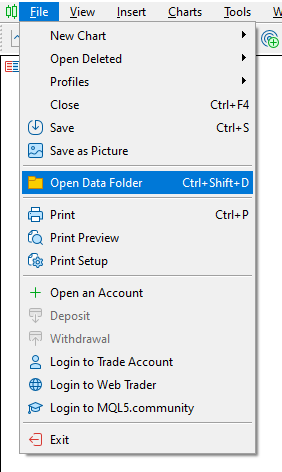
In MT5, click File → Open Data Folder, or simply press Ctrl + Shift + D.
Paste file in the right location
A Windows Explorer window containing your MT5 data will open.
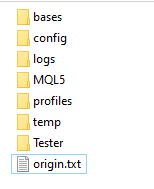 Double-click on
 MQL5.
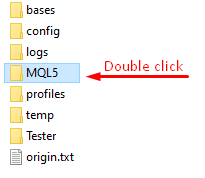 Double-click on
 Experts.
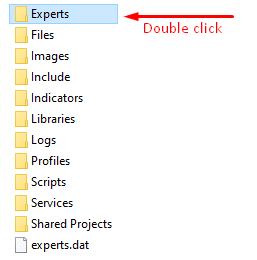 Then paste FastBTN.ex5 here by pressing
 Ctrl + V, or right-click on a blank space and select Paste.
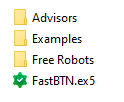
Reload
Close and reopen MT5.
Open Navigator
If not already open, click View → Navigator or press Ctrl + N to open the Navigator.
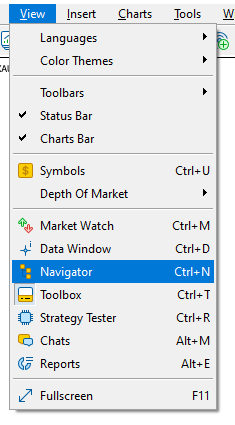
Confirm
You should see FastBTN listed under Expert Advisors.
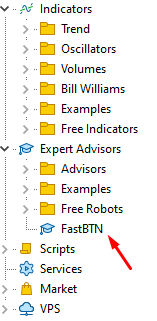
Done
You’ve successfully copied FastBTN.ex5 to the correct location.
Enable Algo Trading
- Click
Tools→Optionsor pressCtrl + O.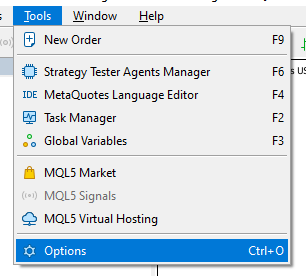
- Click on
Expert Advisorsand make sureAllow algorithmic tradingis checked.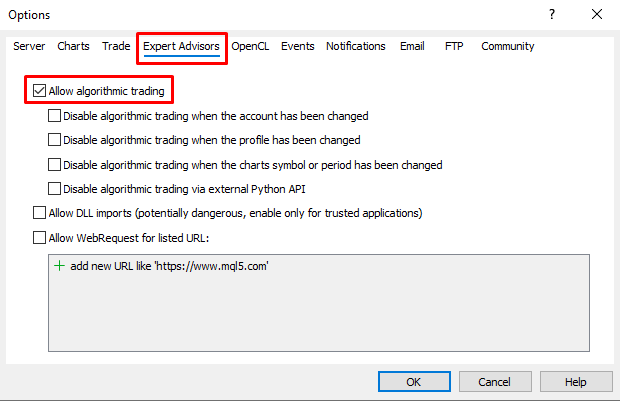
- Click OK.
Attaching FastBTN to a Chart
- Make sure Algo Trading is enabled in MT5.
- Open the chart where you want to use FastBTN.
- Drag FastBTN from the Navigator onto the chart, or double-click it.
- The EA settings window will appear.
- Click OK to attach the EA.
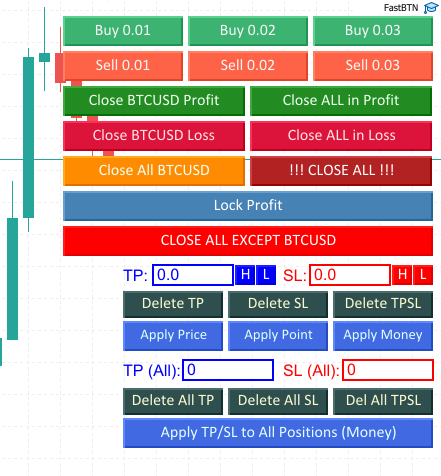
Once attached, FastBTN buttons will appear on the chart.
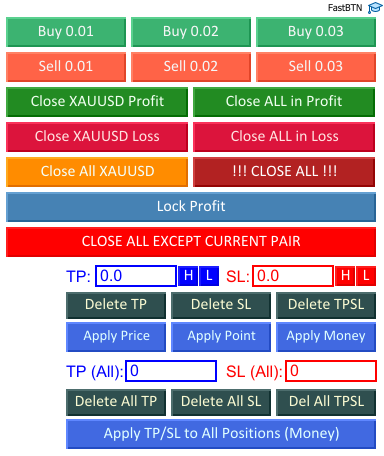
Editing Configuration
To edit FastBTN’s settings after it is already running:
Method 1: Keyboard Shortcut
- Press
F7while the chart is active.
Method 2: Manual Steps
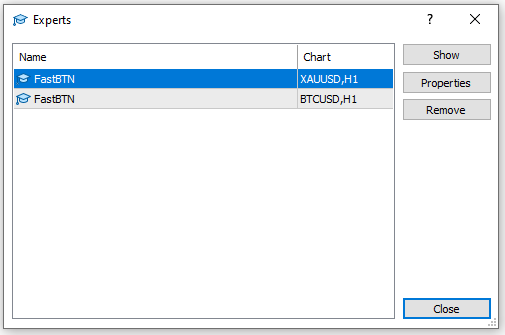
-
Right-click on the chart and select Expert List, or press
Alt + X.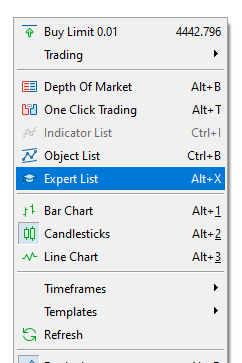
-
Make sure the correct chart is selected, then click Properties.
-
The FastBTN settings window will open.
-
Click the Inputs tab to change configuration options.
Logging and Messages
- FastBTN can display messages or logs related to its actions.
- The logs can be found Experts tabs
- Logs can help with troubleshooting or verifying EA behavior
If something does not work as expected, checking the logs is a good first step.
Important Note
Before using FastBTN or FastSTAT on a live account, please make sure you:
- Understand how all features work
- Test everything on a demo account
- Read and accept the Disclaimer
You are fully responsible for all trading activity.
Tip
If you place the FastBTN buttons on the right side of the chart and they overlap the candles, you can enable Shift Chart from the Right Border to create extra space so price bars remain fully visible.
See: Shift Chart from the Right Border